

Using AirVault
How to Create a Vault in Lensly
Set up a Lensly vault on your spare Android phone, set the Application Password, and create a 24-word recovery phrase you write down by hand.
Before You Start
- Lensly is installed on the offline phone. See How to Install and Verify AirVault.
- The phone has a screen lock. Lensly requires one.
- You have paper and a pen. Do not photograph the words or store them in a notes app.
Create the Vault and the Wallet
Open Lensly
Open Lensly on the offline phone.
Set the Application Password
On the Set Password screen, type a password of at least 12 characters, then type it again on the Confirm screen. Lensly rejects a password that is too easy to guess. Lensly asks for this password each time you unlock the vault, and when you show secrets or sign.
Start a New Wallet
On the home screen of a new vault, tap Create. Tap Restore instead if you already have a 24-word phrase. See How to Back Up and Restore Your Recovery Phrase for restoring. To add a wallet later, open Wallets from the bar at the bottom of the home screen and tap Add Wallet.
Choose the Seed Ceremony
The Seed Ceremony screen asks you to mix in your own randomness. Tap Roll Dice or Flip Coins to mix your own randomness into the phrase. After you enter your rolls or flips, the Compare screen shows two hashes. Tap I compared them to continue. Tap Skip to use only the device’s random generator. Lensly then warns that the wallet will trust only the device’s random generator. Tap Skip Anyway to confirm. A skipped wallet is labelled Device-Generated Wallet.
Write Down the 24 Words
The Recovery Phrase screen shows 24 words, in order. Write them on paper. Anyone with these words can spend from the wallet. When you have written them all down, tap I wrote it down.
Check the Words
On the Check Words screen, pick the word at each position that Lensly asks for. A wrong word starts the quiz again with new questions. The quiz confirms that you copied the words correctly.
Add a Passphrase (Optional)
On the Add Passphrase screen, tap Yes, Add One to add a passphrase, or Skip to continue without one. If you add one, you type it and then type it again to confirm. A passphrase is an extra secret that changes which wallet the 24 words open. Write it down separately from the 24 words. A lost passphrase cannot be recovered.
Name the Wallet
On the Name It screen, type a name for the wallet. If you leave the name blank, Lensly uses the suggested one, such as WALLET 1. You can change the name later.
If you added a passphrase, the Passphrase Backup screen follows. Write the passphrase down, tick I wrote the passphrase down separately, then tap Create Wallet. Without a passphrase, the wallet is saved when you finish the Name It screen.
Check the Result
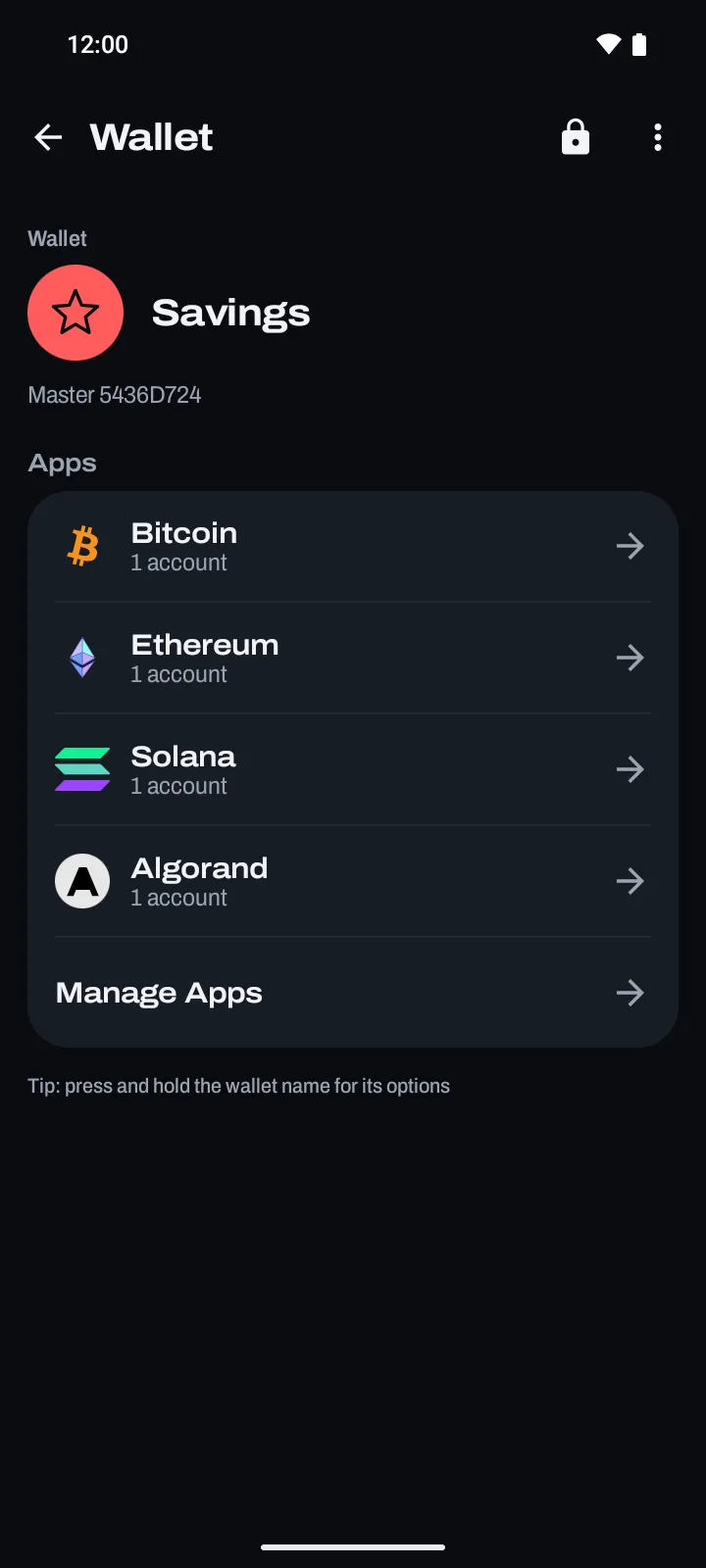
The new wallet opens on its own screen. Under Apps it lists Bitcoin, Ethereum, Solana and Algorand, one for each chain app. A new wallet starts with one account in each chain app. Open Wallets from the bar at the bottom of the home screen to see every wallet.
Next Steps
Pair the wallet with the online app in How to Pair Lumio with Lensly. Read How to Back Up and Restore Your Recovery Phrase before you put funds in the wallet.